
Access a Raspberry Pi desktop from iPhone or iPad
Prepare a compatible Raspberry Pi VNC desktop, connect with GlanceVNC and separate network problems from authentication problems.
Choose a compatible desktop server
To see a Raspberry Pi desktop in GlanceVNC, the Pi must run a graphical desktop and a compatible VNC server. GlanceVNC is the viewer on your iPhone or iPad; it does not install or start a desktop server on the Pi. Raspberry Pi OS Lite does not include a graphical desktop.
VNC server defaults vary across Raspberry Pi OS releases and display systems. Do not assume every WayVNC or RealVNC configuration is compatible. GlanceVNC supports standard VNC password authentication and certificate-backed VeNCrypt 0.2 X509None, X509Vnc and X509Plain modes. Tight Security and anonymous TLS are not supported.
Prepare the Pi
- On the Pi, check the installed OS, desktop and VNC server. Follow the Raspberry Pi documentation for enabling VNC on that release.
- Configure an authentication mode supported by GlanceVNC. If the server cannot offer one, use a compatible VNC server configuration rather than weakening an unrelated security setting.
- Note the listening port and reachable IP address.
hostname -Ion the Pi shows its network addresses; choose the address for the network you are using. - Keep the desktop session available. For headless use, configure a desktop resolution using the instructions for your OS and server.
The official Raspberry Pi remote access documentation explains the current OS options. Raspberry Pi Connect is a separate service, not a connection type inside GlanceVNC.
Save the connection on iPhone or iPad
- Connect both devices to the same trusted network. Allow GlanceVNC Local Network access when prompted.
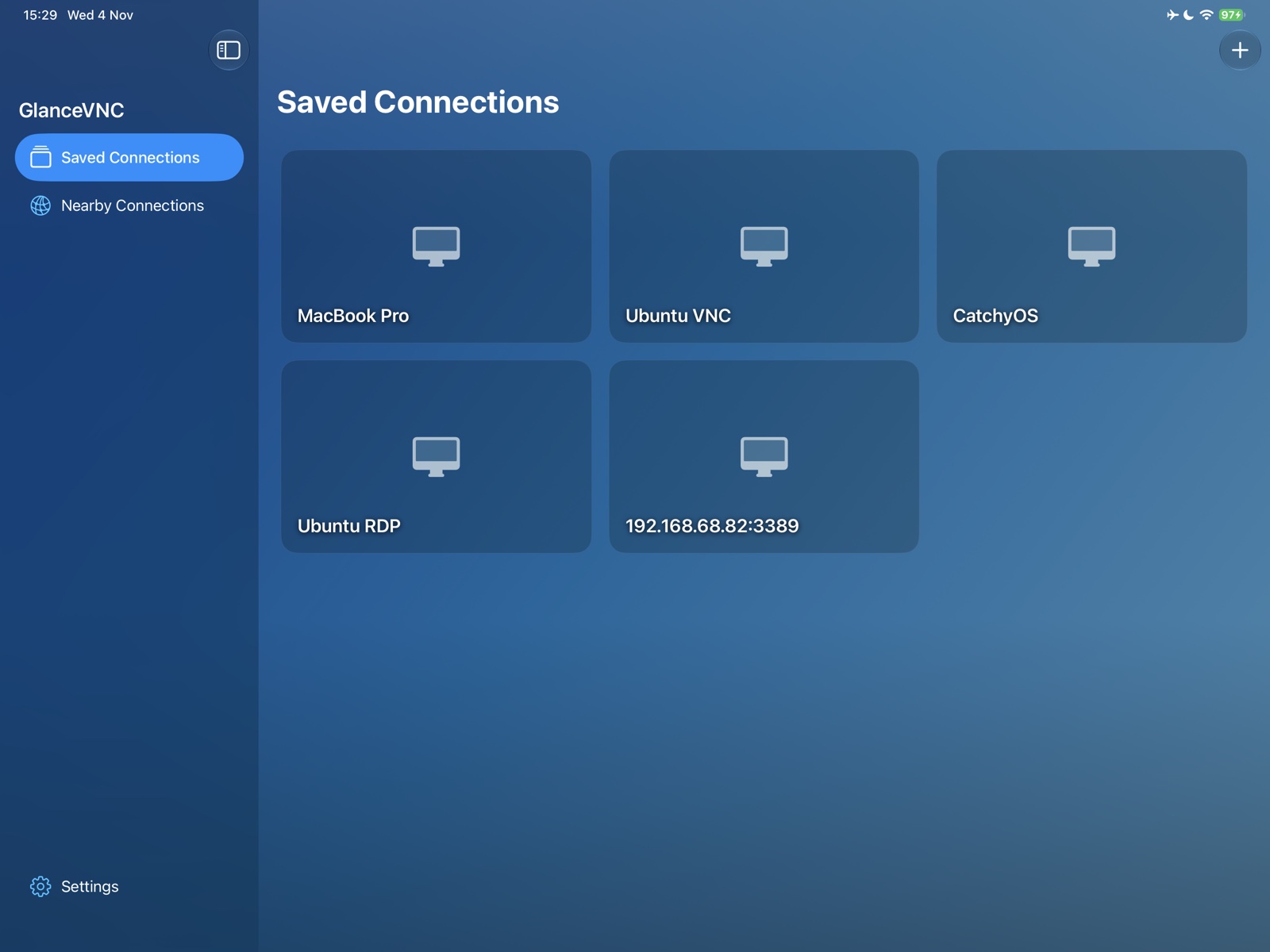
- In Saved Connections, choose Add Connection (+), select VNC and set Operating System to Linux.
- Enter the Pi’s address and VNC port, commonly 5900. A server using display :1 may listen on 5901; use the server’s actual port.
- Choose the sign-in method matching the server and enter its credentials. A VNC password can be separate from your Linux login password.
- Save and connect. Confirm that the desktop appears and accepts pointer and keyboard input.
For certificate-backed VeNCrypt, configure the trust material required by the server. Standard password-only VNC does not encrypt the desktop stream; use it only on a trusted network or through your own VPN.
Connect from away and diagnose failures
Prove the local connection first. Then connect both devices through your own VPN, allow access to the Pi’s VNC port and use the Pi address reachable over that VPN. There is no GlanceVNC relay or built-in Raspberry Pi cloud sign-in.
If the connection times out, check the service, port, firewall and network route. If authentication is rejected, compare the offered security mode with the supported modes above. If a connection opens without a desktop, check that a graphical session and headless resolution exist on the Pi.
For server compatibility details, see GlanceVNC support. For a command-line workflow rather than a desktop, explore SSH connections with GlanceSSH, a separate app.