
Connect to a Windows desktop from iPhone or iPad with RDP
Set up a supported Windows RDP host, add it to GlanceVNC, check its certificate and troubleshoot your first connection.
Check the Windows computer first
GlanceVNC connects directly to a Windows computer running an RDP server. You need an iPhone or iPad with iOS or iPadOS 18 or later, a reachable computer and a Windows account allowed to sign in remotely.
Windows Pro, Enterprise, Education and Windows Server can host Remote Desktop. Windows Home cannot host the built-in RDP service. Check the edition before troubleshooting the app. Keep the computer powered on and awake.
Enable Remote Desktop
- On Windows, open Settings → System → Remote Desktop and turn Remote Desktop on.
- Keep Network Level Authentication enabled. Confirm your account is allowed under Remote Desktop users.
- Note the computer’s reachable IP address or hostname. Confirm its firewall permits RDP from your trusted network or VPN.
For the first connection, place both devices on the same trusted network. For access away from home, use your own VPN and its reachable computer address.
Add the RDP connection in GlanceVNC
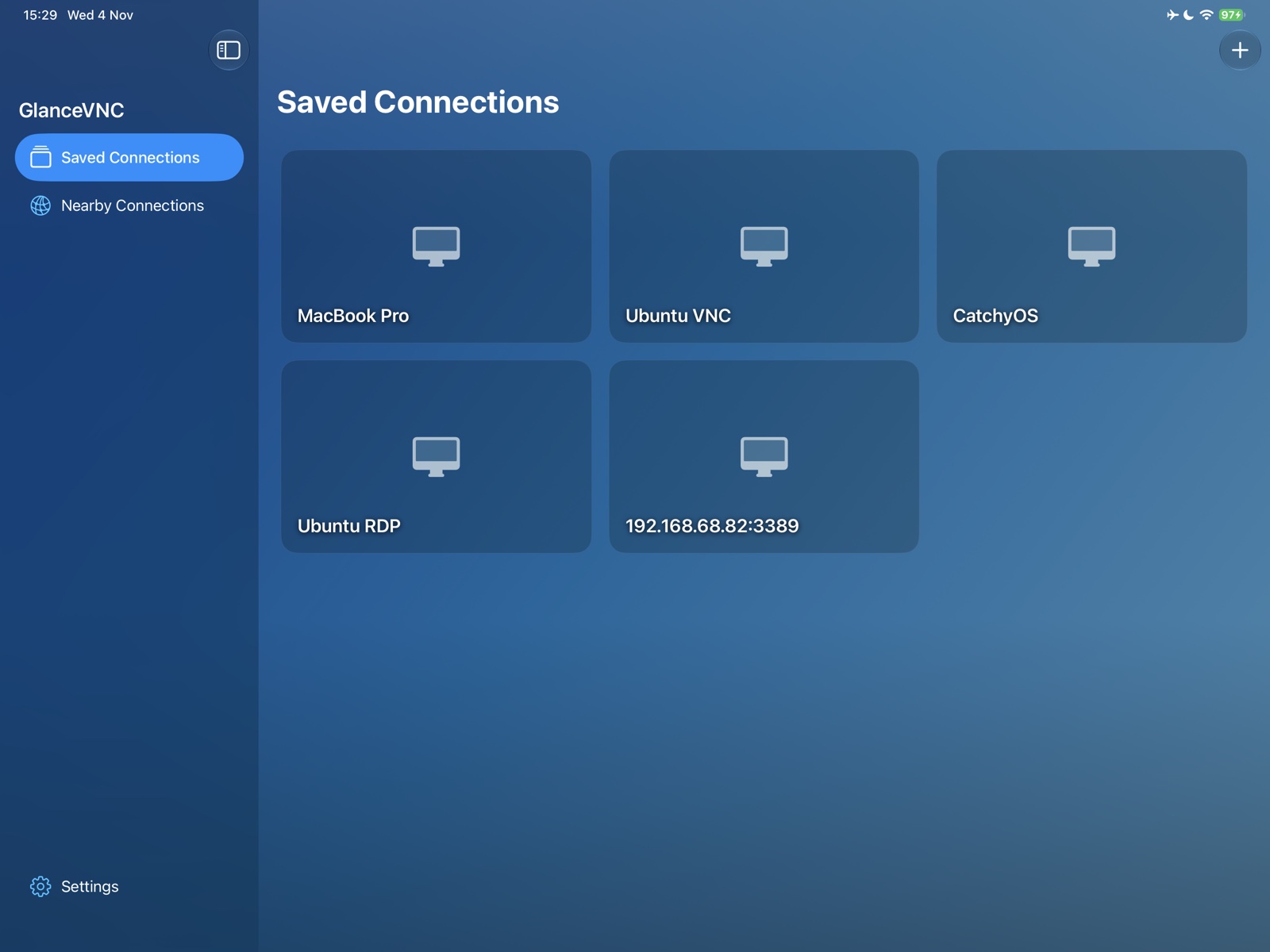
- Open Saved Connections and choose Add Connection (+).
- Select RDP as the protocol. Give the connection a recognisable name.
- Enter the Windows computer’s address and its RDP port, normally 3389. Set Operating System to Windows.
- Enter the username and account password supplied for that computer. A Windows Hello PIN is not the account password.
- Save and connect. When certificate review is required, verify the certificate details with the administrator before approving.
RDP hosts must be added manually: Nearby Connections discovers VNC services. Certificate approval is remembered; a changed certificate requires review again. Optional strict certificate security requires successful verification and offers no approval override.
What works in the session
GlanceVNC supports direct TLS/NLA RDP connections with username/password sign-in, desktop display, keyboard and pointer input, scrolling and plain-text clipboard exchange. Use Touch or Trackpad controls and Fit whole desktop or Fill screen as needed.
RDP gateways, Kerberos/Azure sign-in, audio and file/device redirection are not supported. Clipboard exchange handles text, not files. If your organisation requires a gateway or a different sign-in method, this direct setup does not meet that requirement.
If the desktop does not appear
A timeout usually calls for checking the address, network route, firewall and whether the PC is awake. A rejected sign-in calls for checking the account password, username format and remote access permissions. Ask the administrator to verify certificate changes rather than accepting an unexplained replacement.
See VNC versus RDP for protocol selection and support for session controls.
Windows setup reference: Microsoft’s Remote Desktop instructions.